To enable Multi-factor authentication (MFA) for your user account, follow these steps:
– Log into your Avius account
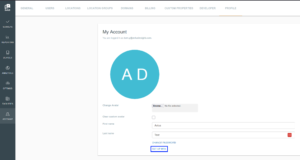
– Go to the Account area of the portal and open the Profile tab
– Click the ‘Set up MFA’ link
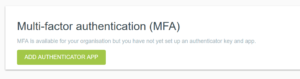
– Click the ‘Add authenticator app’ button to begin the process
– You will be prompted to scan the QR code to register the Avius app in your authenticator app
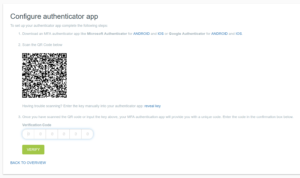
– Once it has been added, enter the verification code from your authenticator app in the box in the Avius app to complete the process
– You will be prompted with a set of MFA recovery codes that you should store somewhere securely, ideally in a password management app. This is important as you will need these to reset MFA on your account should you lose access.
Using MFA:
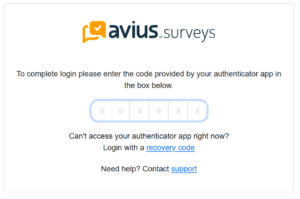
– The next time you log in, you will be prompted to enter the code generated by your authenticator app to complete the login process